Wireless Network Adapters: What They Do and How to Choose One
How wireless network adapters work, USB vs. PCIe vs. M.2, what Wi-Fi 6E and Wi-Fi 7 need, and when replacing one actually fixes your Wi-Fi.
Introduction
A new hire's laptop keeps dropping off Wi-Fi in the back conference room while the person sitting next to them streams video without a hiccup. Same access point, same building. Nine times out of ten the difference isn't the network at all. It's the small radio inside the laptop: the wireless network adapter.
Adapters get ignored because they're invisible. They're soldered to a motherboard, tucked into an M.2 slot, or hanging off a USB port. But every Wi-Fi connection has two ends, and the adapter is the half you control device by device. Here's what it does, what separates a good one from a bad one, and when replacing it is the right fix.
What a Wireless Network Adapter Actually Does
An adapter is the radio and the translator between your computer and the airwaves. It takes data from the operating system, encodes it into radio signals, and sends it to an access point. Then it does the reverse for everything coming back. It also handles the parts you never see: scanning for networks, negotiating which band and channel to use, and running the encryption handshake (WPA2 or WPA3) before a single web page loads.
That means the adapter sets a ceiling. A brand-new Wi-Fi 6 access point can't give a Wi-Fi 5 laptop Wi-Fi 6 features. The connection runs at whatever both ends support, and the older end wins.
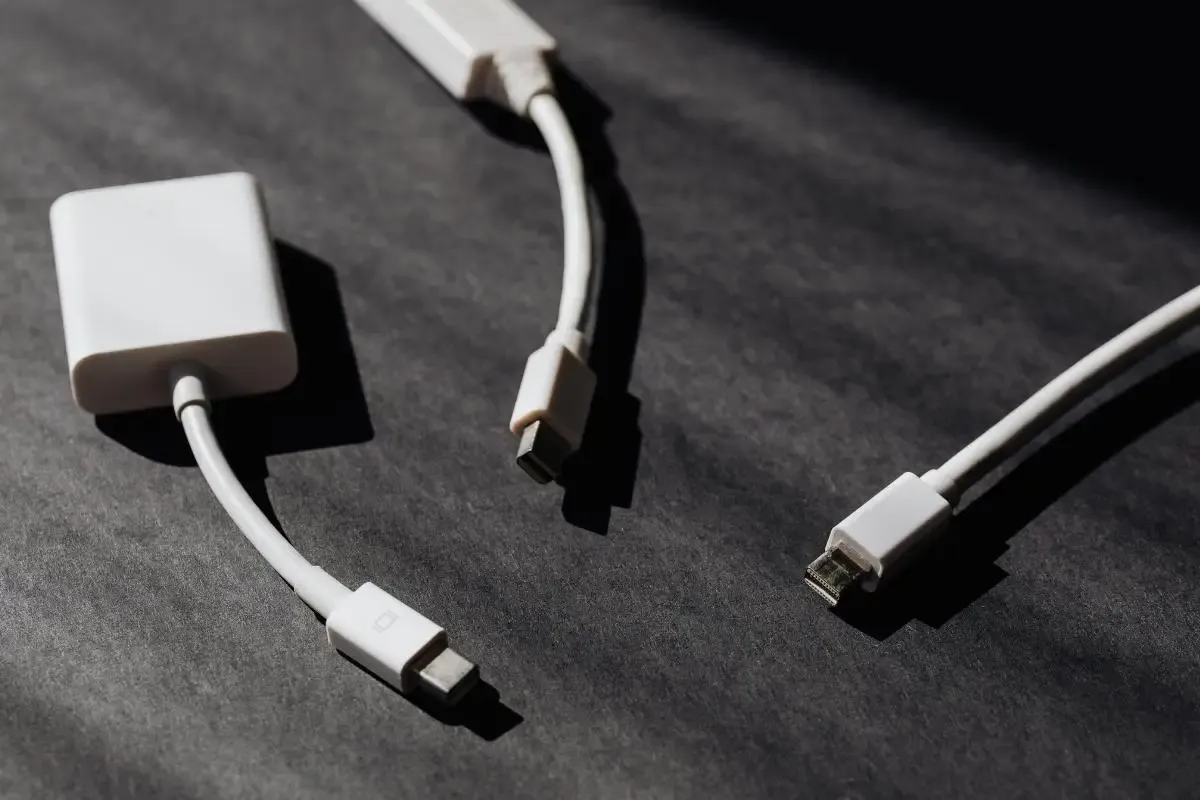
The Four Form Factors You'll Run Into
Built-in (M.2 or soldered)
Nearly every laptop and most modern desktop motherboards ship with an adapter on a small M.2 card, with antenna leads routed into the lid or case. On many laptops that card can be swapped for a newer one, which is often the cheapest way to add a newer Wi-Fi standard to an otherwise healthy machine. Some thin models solder it down, and then you're stuck with what came in the box.
PCIe cards
Desktop cards slot into the motherboard and usually carry external antennas you can reposition. They're the most reliable option for a desktop that sits far from an access point, because the antennas aren't buried behind a metal case.
USB adapters
These are the quick fix: plug in, install a driver, done. The small "nano" versions are fine for light use, while larger ones with folding antennas perform noticeably better. One catch people miss: plug a fast adapter into a USB 2.0 port and the port becomes the bottleneck, since USB 2.0 tops out at 480 Mbps on paper and less in practice. Use a USB 3 port.
Wi-Fi and Bluetooth combo modules
Most current M.2 cards handle Bluetooth too. When Bluetooth headsets start misbehaving at the same moment Wi-Fi gets flaky, the shared card and its driver are a good first suspect.
Wi-Fi Standards: Reading the Box Correctly
The generation names are easier to remember than the IEEE numbers, but you'll see both on spec sheets:
- Wi-Fi 5 (802.11ac): 5 GHz, still common on older business laptops.
- Wi-Fi 6 (802.11ax): 2.4 and 5 GHz, with better handling of crowded rooms full of devices.
- Wi-Fi 6E: the same 802.11ax technology extended into the 6 GHz band, which is far less congested. On Windows, the 6 GHz band needs Windows 11.
- Wi-Fi 7 (802.11be): wider channels and multi-link operation, which lets a device use more than one band at once. Windows added support in Windows 11 version 24H2.
For an office, the practical rule is simple. Match adapters to the access points you actually run, or to the ones you plan to buy in the next refresh. A Wi-Fi 7 adapter talking to a Wi-Fi 5 access point is a Wi-Fi 5 connection. If you're weighing the jump, our Wi-Fi 7 deep dive covers what the new standard changes and what it doesn't.
What to Look for Beyond Speed
The headline number on the box is a theoretical maximum you won't see in a real office. These details matter more:
- Spatial streams (2x2, 3x3): more antennas generally mean steadier throughput at a distance. Most laptops are 2x2, and that's fine.
- WPA3 and 802.1X support: if your network uses certificate-based Wi-Fi (EAP-TLS) through Microsoft Entra ID or a RADIUS server, confirm the adapter and driver handle it before buying fifty of them.
- Chipset and driver history: adapters from the major chipset makers get driver updates for years. Off-brand USB sticks often get one driver and then nothing.
- Where the device came from: buy from known suppliers. For company equipment, stay away from gray-market hardware with unknown firmware.
Installing or Replacing an Adapter
For a USB adapter, plug it into a USB 3 port, let Windows try its built-in driver, and if performance is poor, install the manufacturer's current driver from their own support site. Never use a "driver download" aggregator site. Those are a well-worn route for malware.
For an M.2 swap in a laptop, power down, disconnect the battery if the design allows it, note which antenna lead goes to which connector, and seat the new card. Check the laptop maker's documentation first: some models only accept approved cards and refuse to boot with anything else.
After any change, forget and re-join the network so the new adapter negotiates cleanly. On company devices, push the driver through your management tool instead of installing by hand, so every machine lands on the same tested version.
When the Adapter Isn't the Problem
Before replacing hardware, rule out the cheap fixes. Update the driver. Turn off aggressive power saving on the adapter in Device Manager, because it's a classic cause of drops on laptops. Check whether the trouble follows the device or the room. If every device struggles in the same spot, you have a coverage or interference problem, and no adapter will fix it. That's a job for better access point placement, which we cover in extending Wi-Fi range and Wi-Fi mesh explained.
Frequently Asked Questions
Can I upgrade the Wi-Fi in my laptop?
Often, yes. If the adapter sits on a removable M.2 card, a newer card can bring newer Wi-Fi standards to the machine. Soldered adapters can't be swapped, but a quality USB 3 adapter is a workable alternative.
Is a USB Wi-Fi adapter as good as a built-in one?
A good USB 3 adapter with decent antennas can match or beat an older built-in card. Tiny nano adapters trade performance for convenience and suit light use better.
Do I need Wi-Fi 6E or Wi-Fi 7 on every device?
No. Buy for the access points you run now and plan to run in the next few years. The newer bands only help when both the adapter and the access point support them.
Why does my Wi-Fi drop when my laptop goes to sleep?
Adapter power-management settings are the usual cause. Disabling the option that lets Windows turn the device off to save power, and updating the driver, fixes most cases.
Get the Whole Wireless Picture Right
Adapters are one end of the connection. The other end is access point placement, channel planning, and security configuration, and that's where most office Wi-Fi problems actually live. If your team fights dead zones or dropped calls, our wireless networking team can survey your space and fix the cause instead of the symptom. Tell us what's happening and we'll take a look.
Need Help With Network Technology?
LayerLogix provides expert network technology solutions for businesses across Houston and nationwide.
Related Articles

Need Expert IT Support?
Let our team help your Houston business with enterprise-grade IT services and cybersecurity solutions.